
Apply for a North Carolina Arts Council grant
-
1
Before you begin
Go to our Grants Dashboard, your one-stop shop for grant information. Be sure to bookmark this page for future reference.
Read the eligibility requirements and grant guidelines carefully to determine which grants are most relevant to your work.
- Review the information and material required for your application in the grant guidelines.
- Check in with the program staff member whose expertise best aligns with your discipline.
-
2
Go to OPAL
Scroll down the Grants Dashboard page to open the "Grants portal: OPAL" dropdown. Then click the OPAL (Online Platform for Arts Leaders) button to access the OPAL portal.
If you are new to OPAL, follow the "Registering an account in OPAL" instructions to create an account. If you already have an account, proceed to the next step.
-
3
Sign in to OPAL
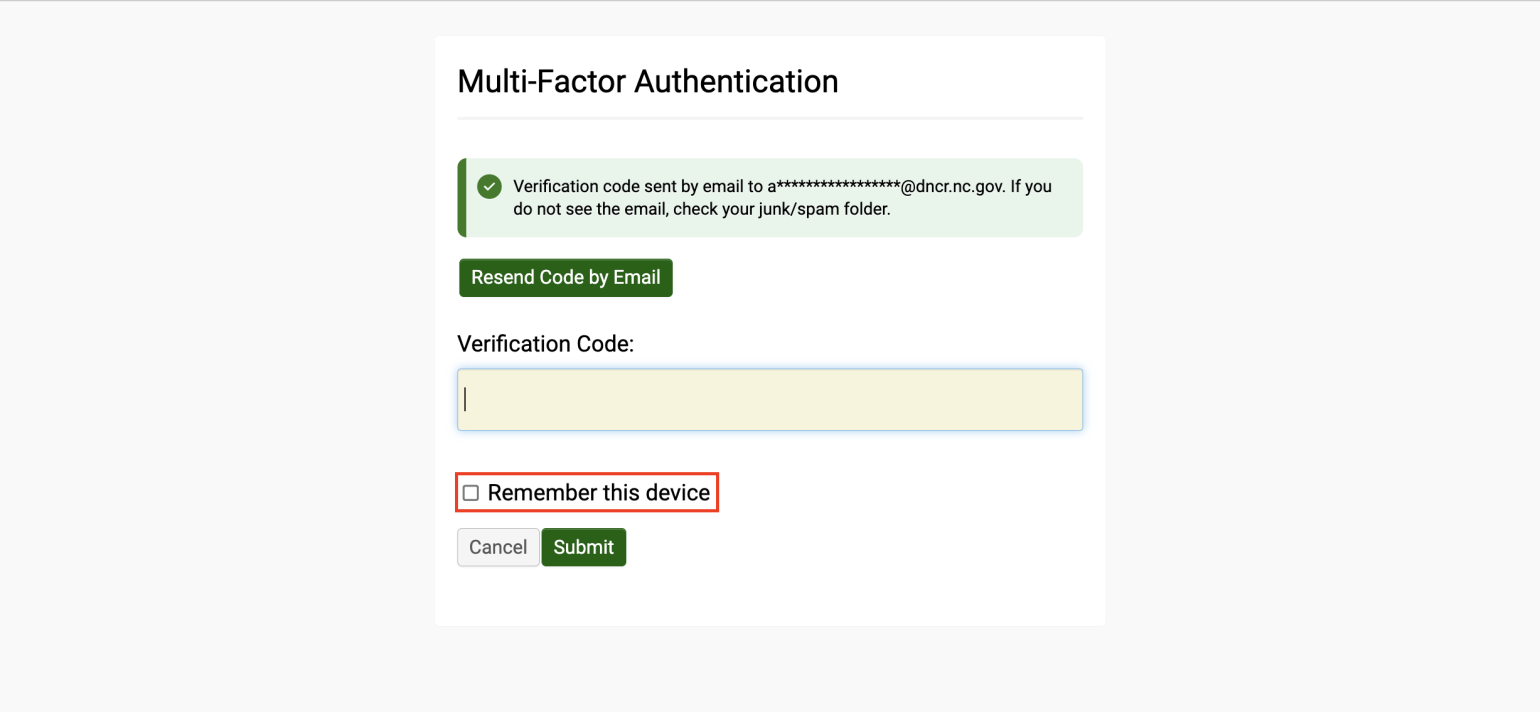
Sign in to OPAL using your credentials. You may be prompted to complete multi-factor authentication with a code sent to your email.
Tip: Select “Remember this device” to avoid repeating this step each time you log in.
-
4
Applicant portal
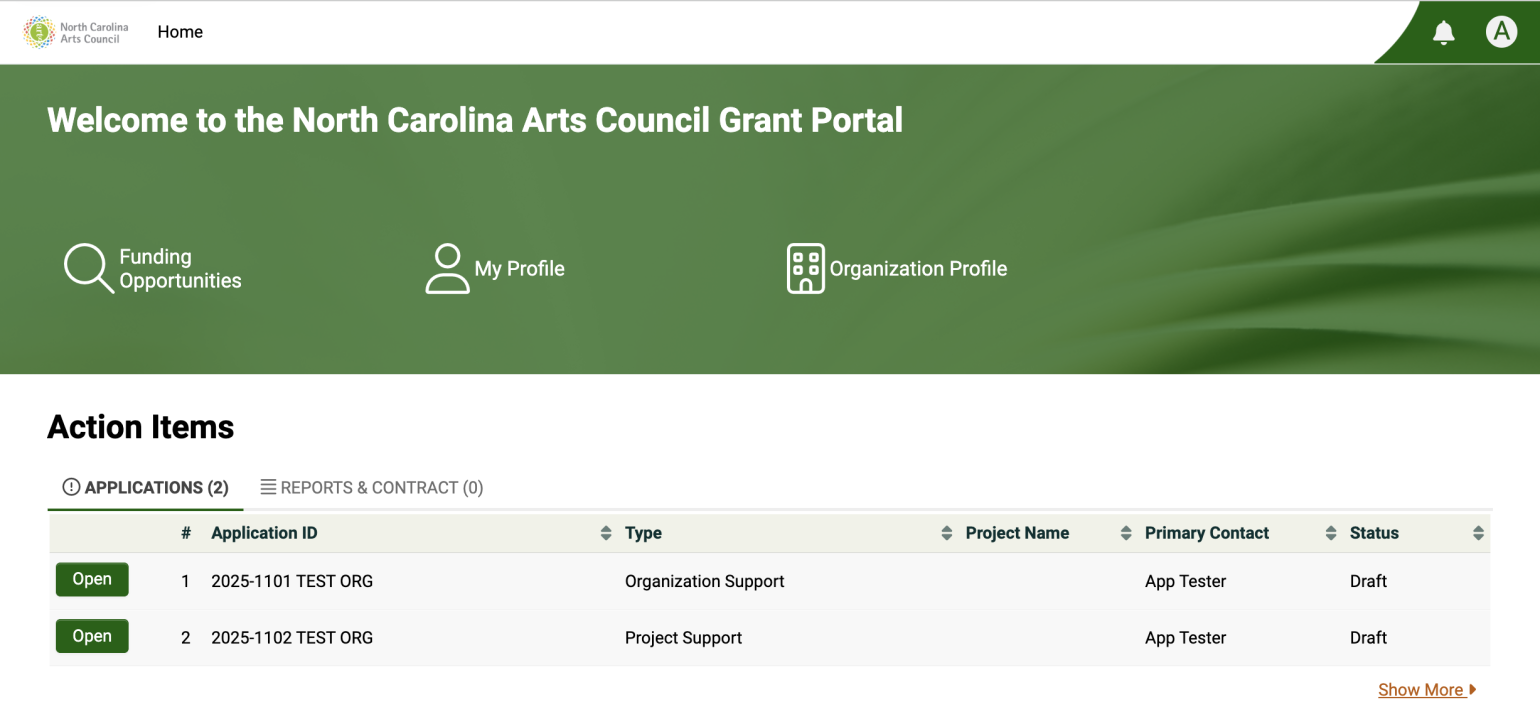
After signing in to OPAL, you’ll land on a customized applicant portal. This page displays all your items, including applications in progress and completed submissions. Use it to track your application status and manage any action items that need your attention.
-
5
Find funding opportunities
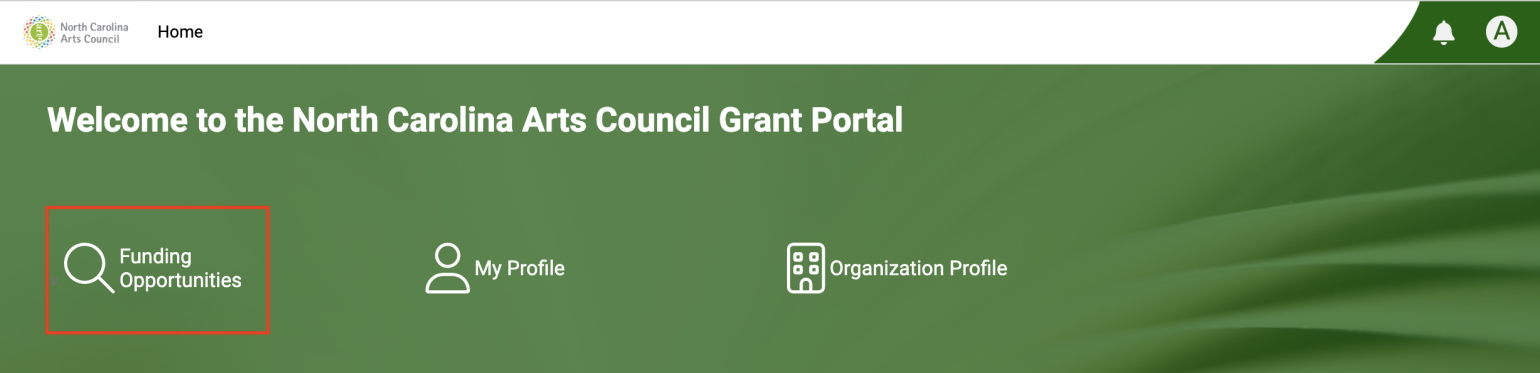
Click "Funding Opportunities" at the top of your OPAL portal to view a list of grants.
-
6
Start an application
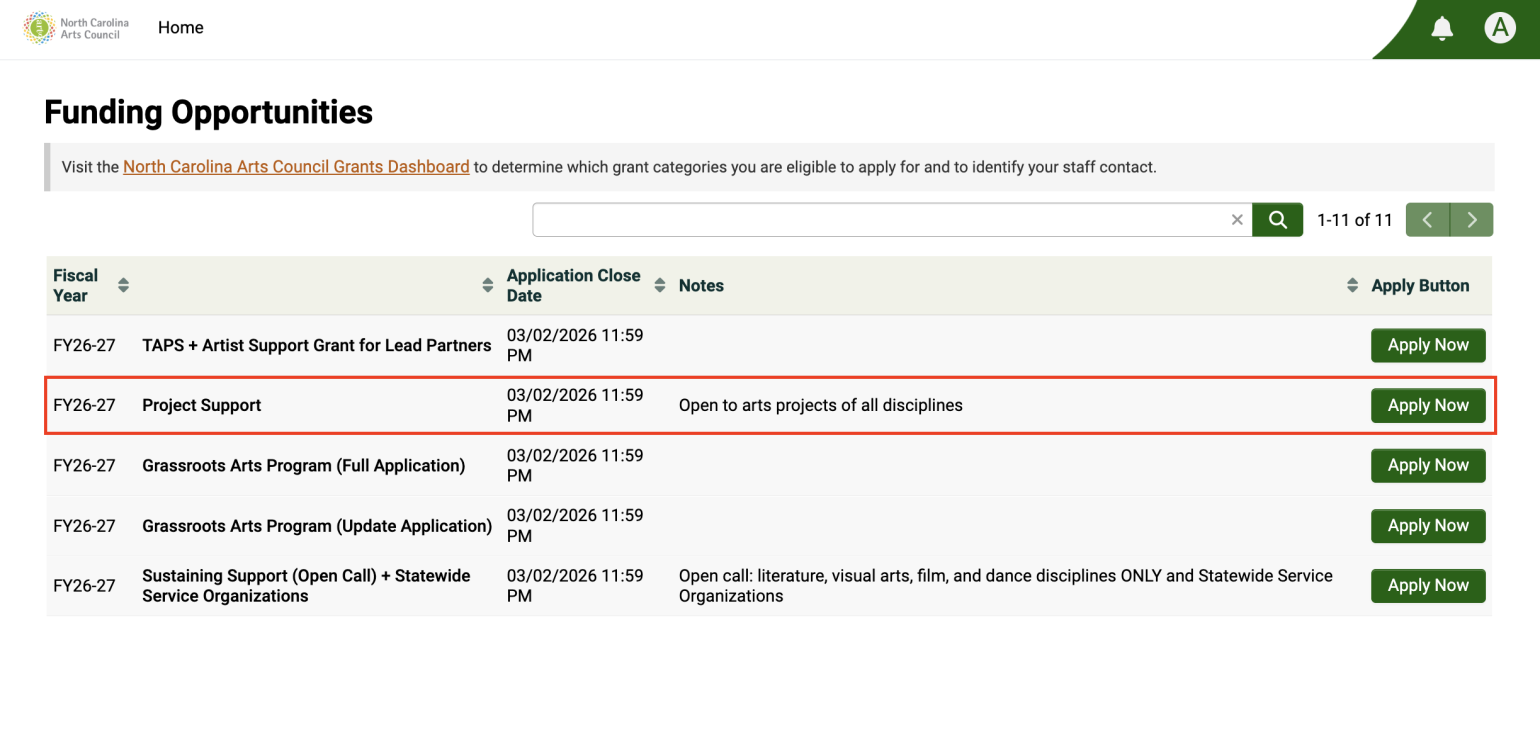
Find the grant you want to apply for on the "Funding Opportunities" page, then click the “Apply Now” button next to it.
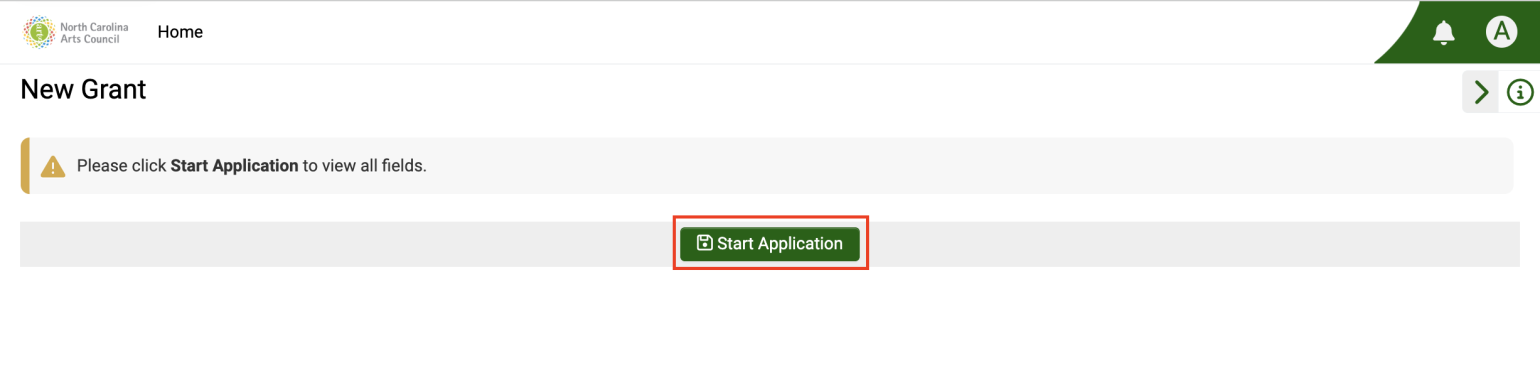
Click the “Start Application” button to begin answering all required questions.
-
7
Complete your application
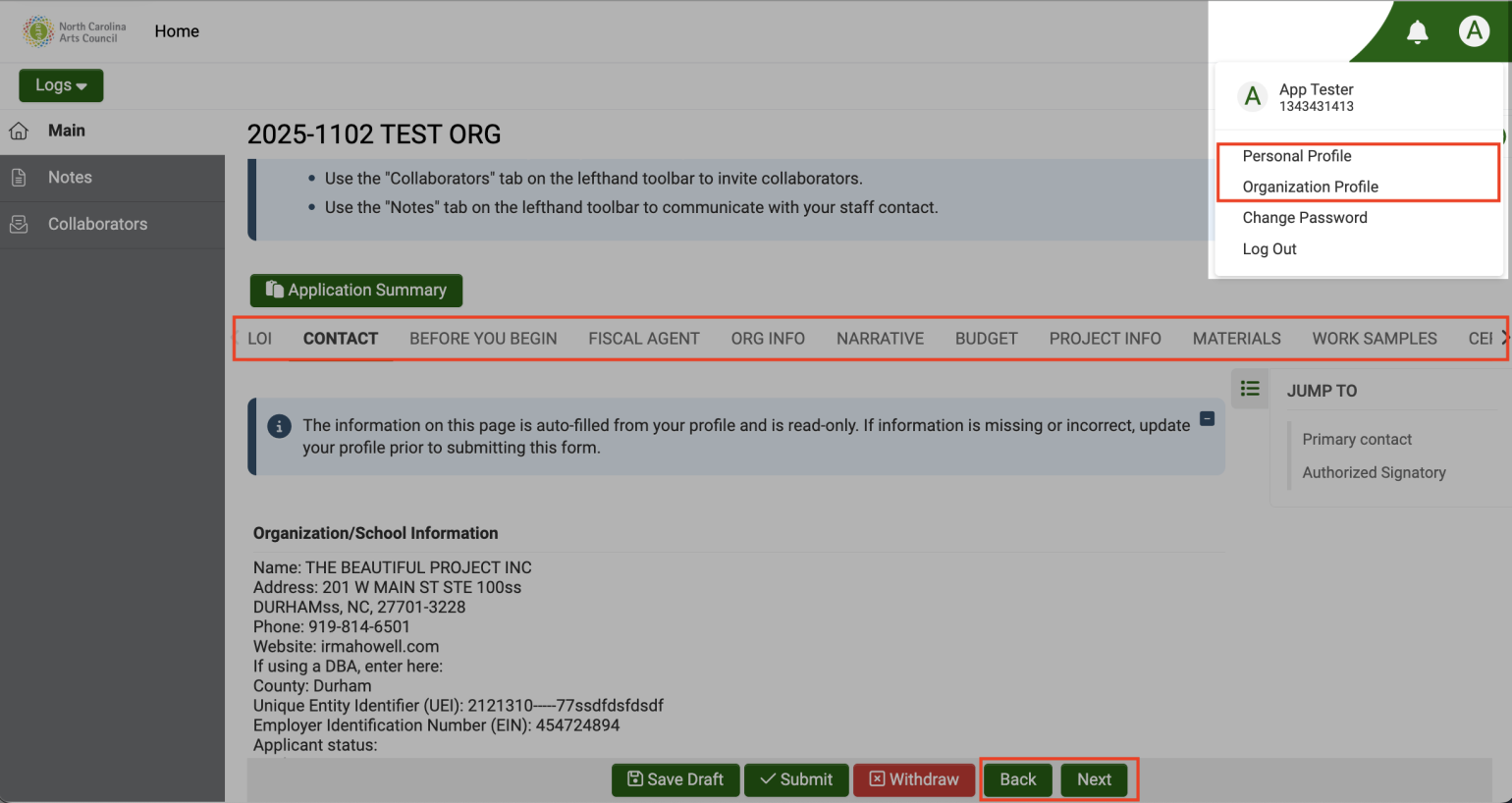
Navigate your OPAL application using the text tabs in the middle of the page, or the "Back" and "Next" buttons at the bottom. Do not use your browser's back button.
Follow on-screen instructions to complete your application. If you have questions about your application details, refer to the grant guidelines. If you have further questions, contact the relevant staff member for clarification.
Save as you go
The application does not autosave. Click "Save Draft" every time you want to save your work, and before leaving the applicant portal.
Profile information
Information on the "Contact" tab of your application is auto-filled from your profile. Use your profile avatar (a circle with an initial on the upper-right hand corner of the page) to access and edit your profile.
Budget table
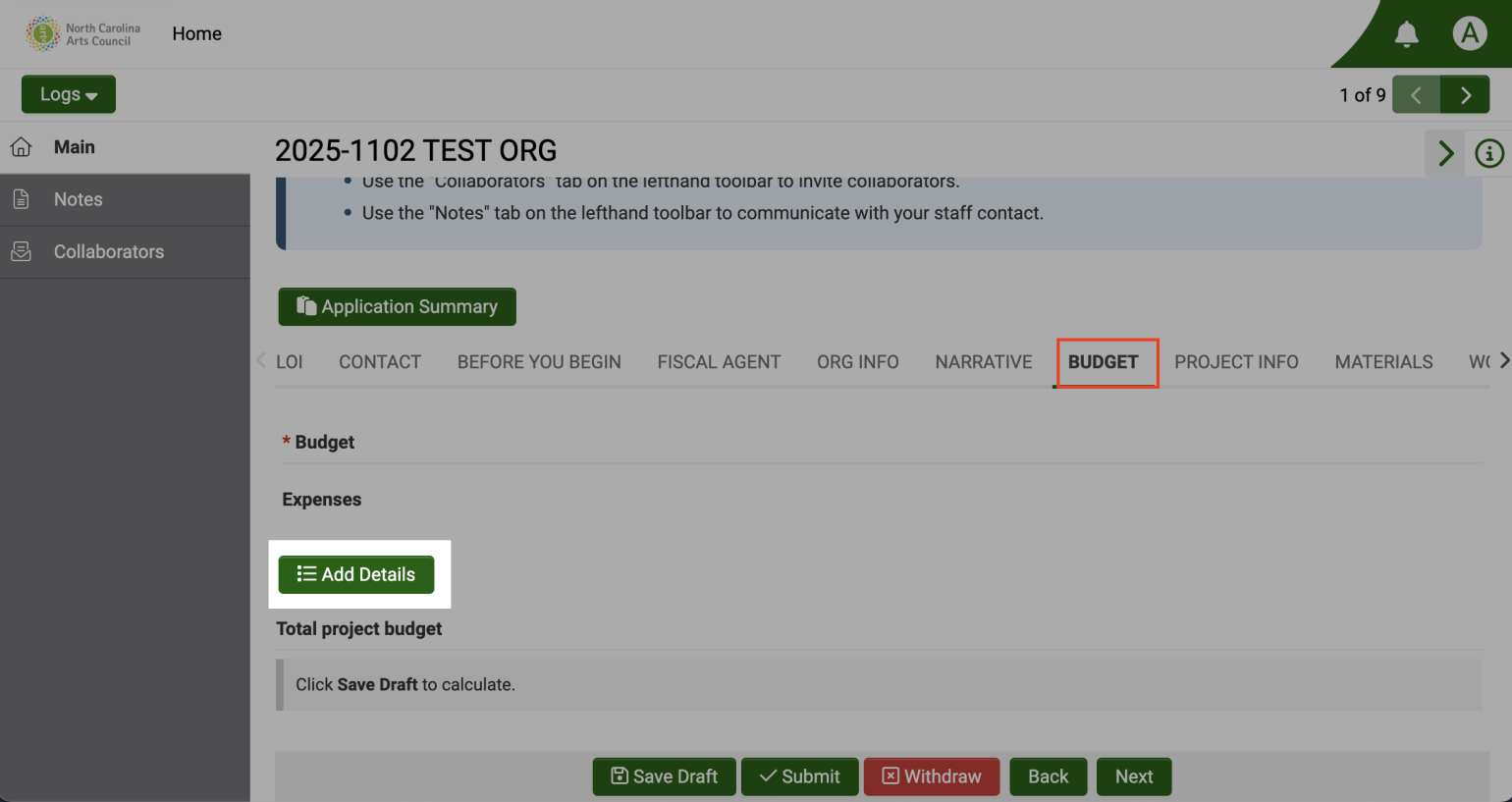
If your application asks for budget information, use the "Add Details" button on the page to add your budget information.
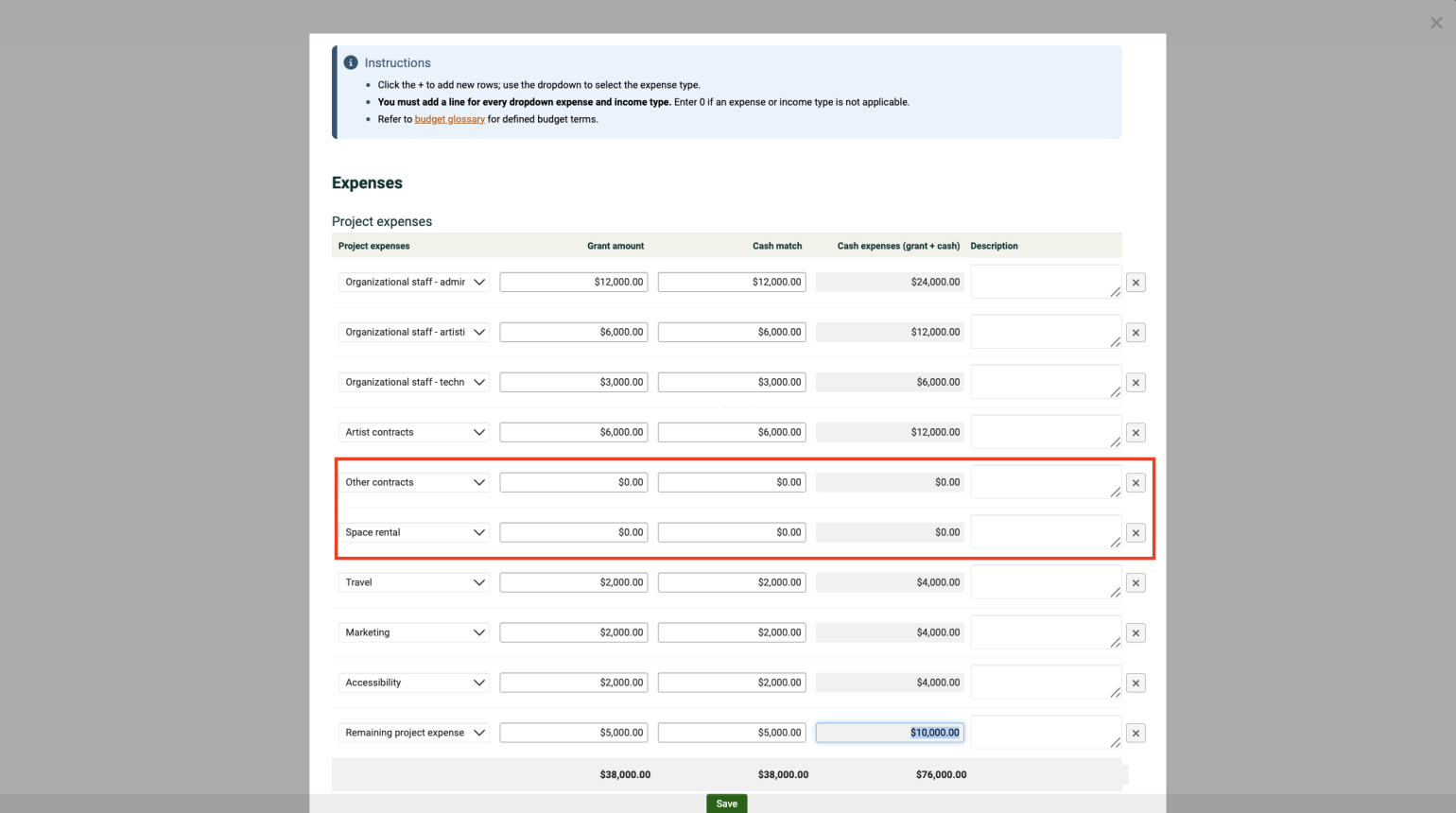
Follow on-screen instructions to build your budget table. You must add a line for each expense/income type in the dropdown menu (enter "0" for expense/income types that are not applicable).
Add a collaborator
You can invite collaborators to help edit your application; however, only the person who created the application can submit it.
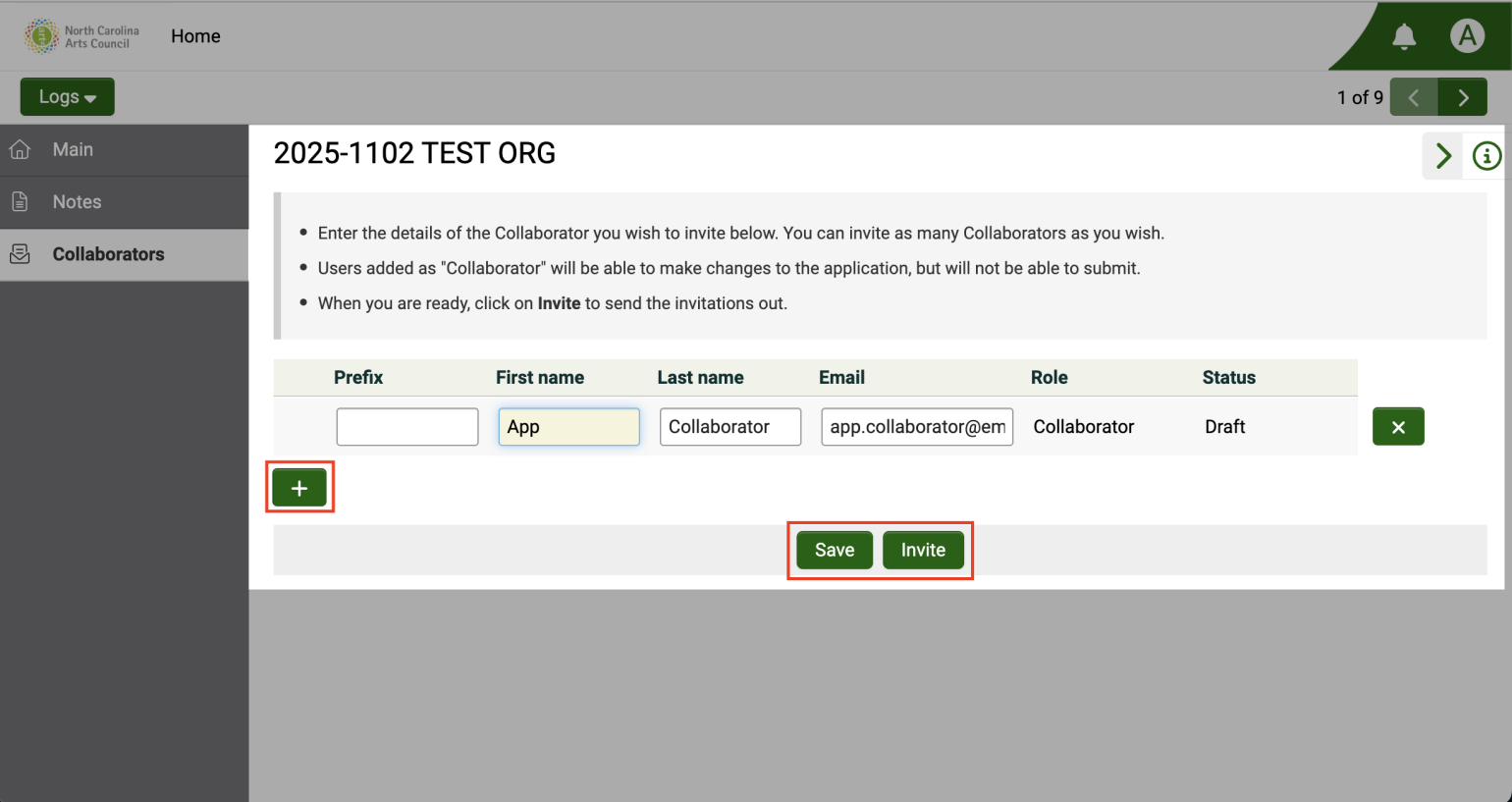
To add a collaborator, go to the “Collaborators” tab in the left-hand navigation menu. Then click the "+" button to add a new row of fields where you can enter the collaborator’s details.
After entering all collaborator details, click the “Invite” button. Once invited, collaborators will receive an email with instructions on how to proceed.
-
8
Submit your application
After completing your application and reviewing all information:
- Go to the "Certification" tab of your application and confirm that all details are accurate and complete
- Click the "Submit" button at the bottom of the application
Important: Only the person who created the application can submit it.
Once the application is submitted, no further edits can be made.
Submission failed error
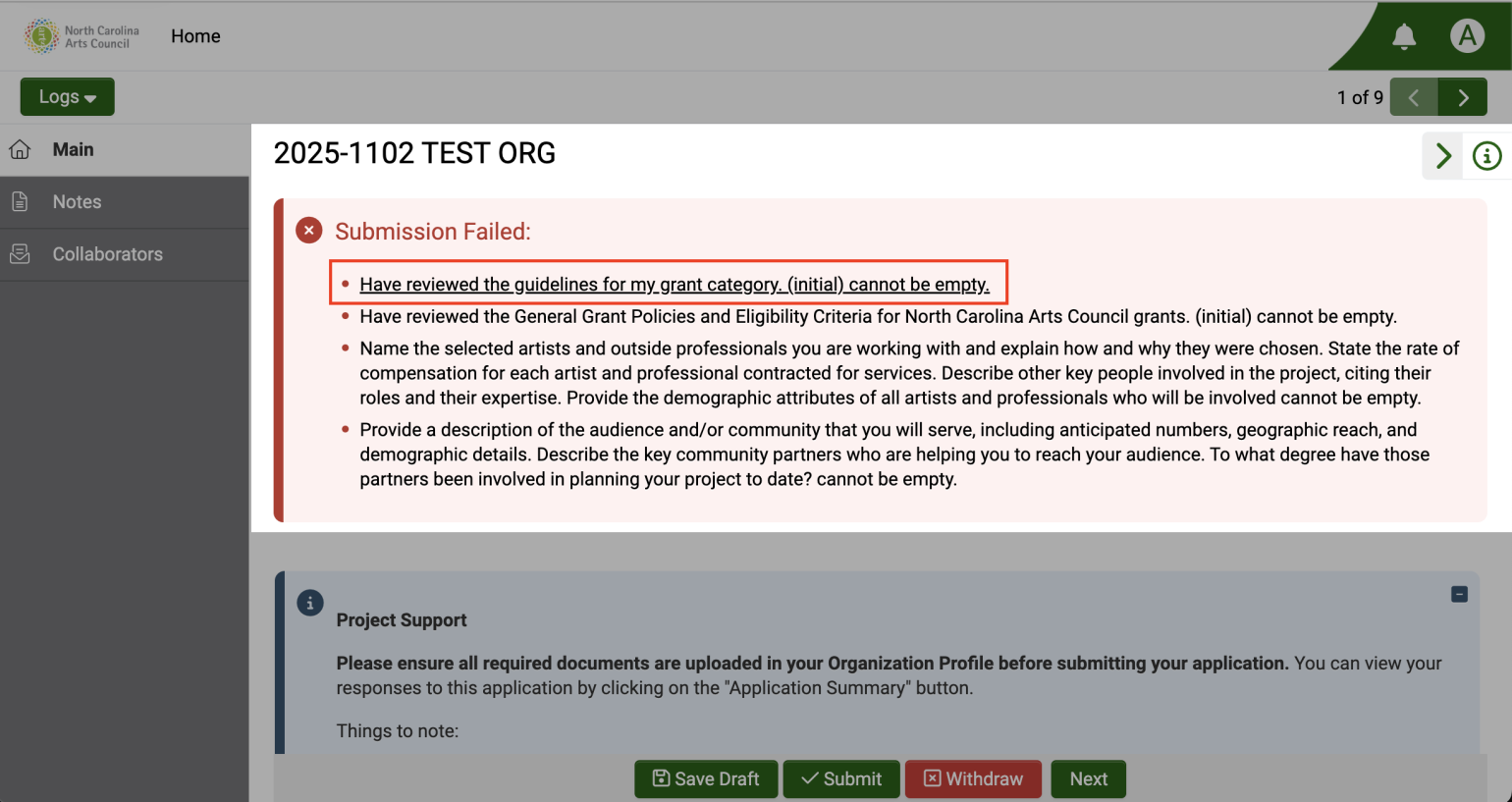
If you see a “Submission Failed” error, click the error message to navigate to the specific location in the application and correct the issue.
-
9
Check your application status
Return to your OPAL Applicant Portal at any time to:
- Check your application status
- View messages or edit requests from program staff
-
10
Troubleshooting
Need help with your application?
- Technical questions: use our OPAL assistance contact form
- Application requirement questions: reach out to the appropriate staff member for your discipline or organization type
Accessibility
For accessibility questions or accommodation requests, please contact the North Carolina Arts Council's Music and Dance Director, Accessibility Coordinator Jamie Katz Court at jamie.katzcourt@dncr.nc.gov or 919-814-6502.